_____ ______ ______ _____ _ _ _____ _____
/ ____| /\ | ____| ____/ ____| | | | /\ | __ \| __ \
| (___ / \ | |__ | |__ | | __| | | | / \ | |__) | | | |
\___ \ / /\ \ | __| | __|| | |_ | | | |/ /\ \ | _ /| | | |
____) / ____ \| | | |___| |__| | |__| / ____ \| | \ \| |__| |
|_____/_/ \_\_| |______\_____|\____/_/ \_\_| \_\_____/
================================================================================
.::Version 1.0 (01/26/2005) .::Designed for TestGuard Version 1.1a
================================================================================
 Files Included:
** -SafeGuard.zip
*- SafeGrd.8xp
*- Readme.txt
*- SafeGrd.z80
======================
File Descriptions:
======================
SafeGrd.8xp
|_ This is the main SafeGuard file. It should be sent to your calculator's RAM or ARCHIVE.
Readme.txt
|_ The Readme file that you are currently viewing.
SafeGrd.z80
|_ The Source file for SafeGrd.8xp, it is heavely commented. Refer to "How SafeGuard Works" for more information.
======================
Usage:
======================
SafeGuard is a tool to fully bypass TestGuards memory clearing functions. Please be sure to read "USER EXPECTATIONS"
before running SafeGuard. In order to use SafeGuard properly, always execute it from the TI-OS homescreen using
the following syntax:
Asm( prgmSAFEGRD )
The ASM() token can be found be pressing 2nd+Zero, then scrolling to ASM() and pressing enter. Press PRGM to
enter the program menu. Select SafeGrd and press enter. A closing parenthesis is not required. Press
enter again to execute SafeGrd.
You will be prompted with a User notice, which can be found under "Legal" in this readme. Press enter to be
prompted with a successful installation screen. It is -REQUIRED- that you re-install SafeGuard each time you
wish to utilize it's blocking feature. Each successful block will disable SafeGuard so that you may resume
normal calculator usage. It is -NOT- recommended that you attempt to access programs or applications after
SafeGuard has been installed and before TestGuard has run. If you wish to continue normal calculator usage
before TestGuard is executed, you must do so at your own risk. SafeGuard does not account for every possibility
that your calculator may run into. This can cause RAM or MEMORY resets.
Once installed, SafeGuard will do everything on it's own to block TestGuard. Once TestGuard has run, it is
recommended that you archive SafeGuard in your memory in order to save it for future usage.
======================
User Expectations:
======================
There are a number of guidelines YOU MUST follow in order to use SafeGuard. If you do not agree with these
guidelines, then delete SafeGuard and all related information immediately.
1. Do not use SafeGuard to cheat.
.:: Safeguard is designed to keep your memory and applications in place, so that you
do not need to re-load your software, as this is tedious and time-consuming.
2. You must use SafeGuard at your own risk.
.:: If you are caught using SafeGuard, please explain that you WERE NOT cheating
(see 1) to your teacher, and that you will gladly delete your programs. Then
delete them. You must accept any disciplinary consequences that may come of
using this program. Use at your own risk.
3. You cannot be held liable for the creation of this program.
.:: You shall not be held accountable for the creation of this program. However,
if you happen to be caught, you must accept the consequences of using SafeGuard.
======================
Usage (cont):
======================
There are a few ways to tell if SafeGuard is running or not. If SafeGuard is currently running, your calculator
will most likely, be extremely slow. This serves a two-fold purpose. One is to prevent users from accidently
reseting their calculator, by causing a RAM reset, the second informs you that SafeGuard is indeed running. As
a general test, type a few numbers onto the homescreen quickly. A delayed key response means that it is running.
How do I turn it off, If I decide I don't need SafeGuard running?
1. SafeGuard is automatically shut off after TestGuard has "cleared" your calculator.
2. ANY error, Syntax, Overflow, will turn off SafeGuard.
The quickest way to do so, is to produce an OVERFLOW error. Type 100^100 on the TI-OS homescreen, press enter,
then press QUIT on the error screen. SafeGuard is now uninstalled.
======================
Legal:
======================
By using this program, you are adhering to the User Expectations as listed above. If you do not comply with these
requirements, delete SafeGuard at once. You, the user, shall not be help accountable or liable for the creation
or distribution of this program. You, the user, must take full responsibility for employing this program in order
to circumvent TestGuard. This program may not be sold for any amount of goods, services, or currency. Use this
program at your own discretion and risk. Do not attempt to cheat with this program. I, the programmer, shall not
be held responsible for your actions with SafeGuard.
Any outside authors, influencers, and/or contributors, shall not be held liable for SafeGuard's usage, creation,
or distribution.
No illegal activities and/or violations of DMCA were taken in order to create this program.
======================
How SafeGuard Works:
======================
(Information current to TestGuard version 1.1a)
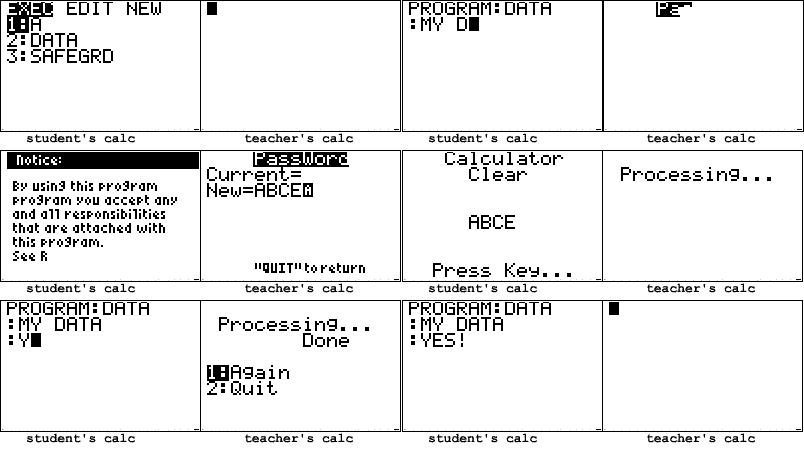
SafeGuard utilizes a hardware interrupt in order to catch TestGuard.
When TestGuard is executed on the teacher's calculator, it sends the program EXEC to the student's calculator.
EXEC Contains the BASIC code: asm(prgmTESTASM)
The teacher's calculator then sends prgmTESTASM to the student, and silent links a command to execute prgmEXEC
SafeGuard will identify when EXEC is present, then replace the code in it with asm(prgmSafeGrd)
This will cause SafeGrd to run when the TestGuard sends the command to execute TESTASM.
SafeGuard's interrupt will replace the code, extract the password from prgmTESTASM, then delete the latter.
SafeGuard's inner workings-
SafeGuard first re-assembles the password that TI has "encrypted"
It is then displayed along with the "Calculator Cleared" screen
Next, SafeGuard determines your calculator type, and OS version, and creates it's own, false, RAM cleared screen
The appvar is reset, and the program exits. The teacher's calc displays a successful wipe, and the student's
calculator shows it.
======================
More Information:
======================
If you are interested in more, technical information, please refer to Michael Vincent's full documentation of
TestGuard v1.1a at http://www.radicalsoft.org/michael/testguard.txt
======================
Special Thanks:
======================
There were a number of people that helped out directly, or indirectly.
.:: Michael Vincent - Documentation of TestGuard, port reference
.:: Brandon - Help with numerous things in chat
.:: Patrick D - "
.:: CalcKing - "
.:: AndySoft - "
.:: Ben R - Version checking code
.:: Dan E - 83 and 84 Port differences
.:: ASM GURU - Helped numerous times with bit level stuff, and references
Files Included:
** -SafeGuard.zip
*- SafeGrd.8xp
*- Readme.txt
*- SafeGrd.z80
======================
File Descriptions:
======================
SafeGrd.8xp
|_ This is the main SafeGuard file. It should be sent to your calculator's RAM or ARCHIVE.
Readme.txt
|_ The Readme file that you are currently viewing.
SafeGrd.z80
|_ The Source file for SafeGrd.8xp, it is heavely commented. Refer to "How SafeGuard Works" for more information.
======================
Usage:
======================
SafeGuard is a tool to fully bypass TestGuards memory clearing functions. Please be sure to read "USER EXPECTATIONS"
before running SafeGuard. In order to use SafeGuard properly, always execute it from the TI-OS homescreen using
the following syntax:
Asm( prgmSAFEGRD )
The ASM() token can be found be pressing 2nd+Zero, then scrolling to ASM() and pressing enter. Press PRGM to
enter the program menu. Select SafeGrd and press enter. A closing parenthesis is not required. Press
enter again to execute SafeGrd.
You will be prompted with a User notice, which can be found under "Legal" in this readme. Press enter to be
prompted with a successful installation screen. It is -REQUIRED- that you re-install SafeGuard each time you
wish to utilize it's blocking feature. Each successful block will disable SafeGuard so that you may resume
normal calculator usage. It is -NOT- recommended that you attempt to access programs or applications after
SafeGuard has been installed and before TestGuard has run. If you wish to continue normal calculator usage
before TestGuard is executed, you must do so at your own risk. SafeGuard does not account for every possibility
that your calculator may run into. This can cause RAM or MEMORY resets.
Once installed, SafeGuard will do everything on it's own to block TestGuard. Once TestGuard has run, it is
recommended that you archive SafeGuard in your memory in order to save it for future usage.
======================
User Expectations:
======================
There are a number of guidelines YOU MUST follow in order to use SafeGuard. If you do not agree with these
guidelines, then delete SafeGuard and all related information immediately.
1. Do not use SafeGuard to cheat.
.:: Safeguard is designed to keep your memory and applications in place, so that you
do not need to re-load your software, as this is tedious and time-consuming.
2. You must use SafeGuard at your own risk.
.:: If you are caught using SafeGuard, please explain that you WERE NOT cheating
(see 1) to your teacher, and that you will gladly delete your programs. Then
delete them. You must accept any disciplinary consequences that may come of
using this program. Use at your own risk.
3. You cannot be held liable for the creation of this program.
.:: You shall not be held accountable for the creation of this program. However,
if you happen to be caught, you must accept the consequences of using SafeGuard.
======================
Usage (cont):
======================
There are a few ways to tell if SafeGuard is running or not. If SafeGuard is currently running, your calculator
will most likely, be extremely slow. This serves a two-fold purpose. One is to prevent users from accidently
reseting their calculator, by causing a RAM reset, the second informs you that SafeGuard is indeed running. As
a general test, type a few numbers onto the homescreen quickly. A delayed key response means that it is running.
How do I turn it off, If I decide I don't need SafeGuard running?
1. SafeGuard is automatically shut off after TestGuard has "cleared" your calculator.
2. ANY error, Syntax, Overflow, will turn off SafeGuard.
The quickest way to do so, is to produce an OVERFLOW error. Type 100^100 on the TI-OS homescreen, press enter,
then press QUIT on the error screen. SafeGuard is now uninstalled.
======================
Legal:
======================
By using this program, you are adhering to the User Expectations as listed above. If you do not comply with these
requirements, delete SafeGuard at once. You, the user, shall not be help accountable or liable for the creation
or distribution of this program. You, the user, must take full responsibility for employing this program in order
to circumvent TestGuard. This program may not be sold for any amount of goods, services, or currency. Use this
program at your own discretion and risk. Do not attempt to cheat with this program. I, the programmer, shall not
be held responsible for your actions with SafeGuard.
Any outside authors, influencers, and/or contributors, shall not be held liable for SafeGuard's usage, creation,
or distribution.
No illegal activities and/or violations of DMCA were taken in order to create this program.
======================
How SafeGuard Works:
======================
(Information current to TestGuard version 1.1a)
SafeGuard utilizes a hardware interrupt in order to catch TestGuard.
When TestGuard is executed on the teacher's calculator, it sends the program EXEC to the student's calculator.
EXEC Contains the BASIC code: asm(prgmTESTASM)
The teacher's calculator then sends prgmTESTASM to the student, and silent links a command to execute prgmEXEC
SafeGuard will identify when EXEC is present, then replace the code in it with asm(prgmSafeGrd)
This will cause SafeGrd to run when the TestGuard sends the command to execute TESTASM.
SafeGuard's interrupt will replace the code, extract the password from prgmTESTASM, then delete the latter.
SafeGuard's inner workings-
SafeGuard first re-assembles the password that TI has "encrypted"
It is then displayed along with the "Calculator Cleared" screen
Next, SafeGuard determines your calculator type, and OS version, and creates it's own, false, RAM cleared screen
The appvar is reset, and the program exits. The teacher's calc displays a successful wipe, and the student's
calculator shows it.
======================
More Information:
======================
If you are interested in more, technical information, please refer to Michael Vincent's full documentation of
TestGuard v1.1a at http://www.radicalsoft.org/michael/testguard.txt
======================
Special Thanks:
======================
There were a number of people that helped out directly, or indirectly.
.:: Michael Vincent - Documentation of TestGuard, port reference
.:: Brandon - Help with numerous things in chat
.:: Patrick D - "
.:: CalcKing - "
.:: AndySoft - "
.:: Ben R - Version checking code
.:: Dan E - 83 and 84 Port differences
.:: ASM GURU - Helped numerous times with bit level stuff, and references